
With a document template, you set up your own model, such as a ROZ lease (a standard Dutch lease), once. After that, you create a filled-in lease from a rental contract in a few clicks.
In this article
Two kinds of templates
| Kind | Customizable? | Where |
|---|---|---|
| Document templates, for example your lease | Yes, fully. You enter your own model. You can create multiple templates. | Settings > Modules > Files > Documents |
| Fixed OWNER templates: sales invoice, indexation letter, inspection report and work order | No. You can only adjust the logo and the owner details. | Settings > Environment settings > Owners |
Note: There's no sample template ready, not even a lease. A new document template is empty; you enter your own model.
Creating a document template
Step 1 – Open the document templates
- Go to Settings > Modules > Files > Documents.
- Click New.
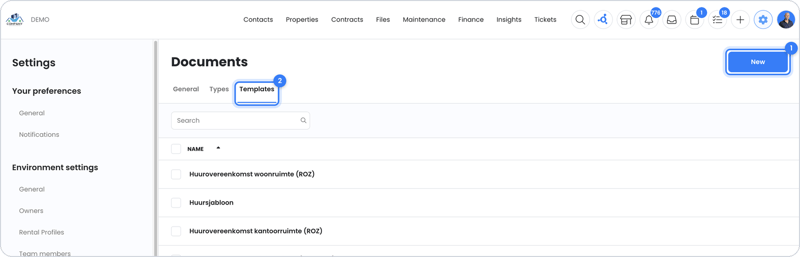
Step 2 – Enter your model and add labels
- Paste or type the text of your model, for example your ROZ lease.
- Add labels where data from OWNER should go, such as the tenant's name, the unit's address or the rent.
- Save the template.
Tip: Check that all labels are in the right place. If needed, create a test document before you actually use the template.
Generating a lease from a rental contract
- First create the rental contract in OWNER, with the tenant, the unit and the sales items.
- Go to Files > Documents, click New and choose Create from template.
- Choose the template, the rental contract and the unit and click Create. OWNER fills in the labels.
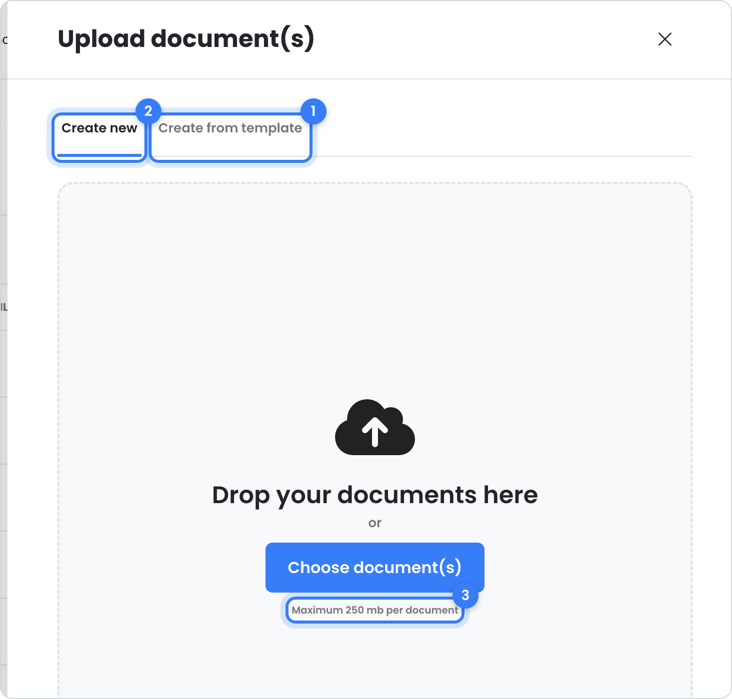
After that, you can finalize the document and have it signed digitally. Read How do I create a document and have it signed digitally?.
Fixed OWNER templates
Sales invoices, indexation letters, inspection reports and work orders have a fixed layout and text. You can adjust the logo and details per owner under Settings > Environment settings > Owners. The font, layout and text can't be changed.
You do compose the questions for an inspection yourself in an inspection template. Read Carrying out inspections.
Still need help?
Contact support:
- Chat: via the help center (chat button at the bottom right)
- Email: support@owner.app
- Call or WhatsApp: +31 591 799 602