
You share a rental contract by adding a person to the rental contract and giving that person access. The tenant then sees the rental contract in their own OWNER account.
In this article
Sharing a rental contract
Step 1 – Add a person to the rental contract
- Open the rental contract via Contracts > Rental contracts.
- Go to Persons on the right and link the person. If the person isn't in OWNER yet, you create them here.
Note: Is the tenant a company? Then add a person as well, for example the contact who receives the sales invoices. A company itself can't log in.
Step 2 – Give access
- Select the person and choose Actions > Share.
- The person receives an invitation by email.
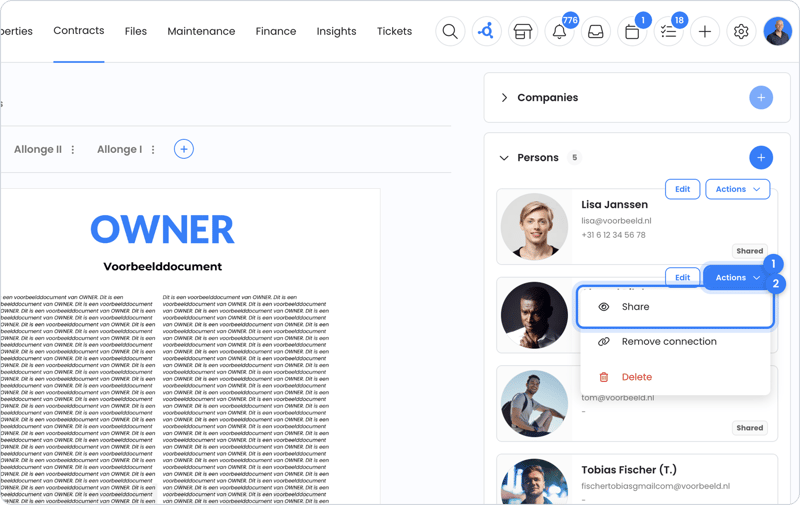
You can give multiple persons access to the same rental contract. Want to share multiple rental contracts at once? Check them in the rental contracts overview and choose Share at the bottom. All linked persons then get access.
What does the tenant see?
To see the rental contract, the tenant creates an OWNER account with the same email address the invitation was sent to. After that, they see:
- the rental contract with the key details;
- the sales invoices;
- the indexations;
- the documents in the upload area in the middle of the rental contract;
- the option to create tickets.
Tip: Documents you upload in the middle of the rental contract, such as the contract and addenda, are automatically visible to persons with access. Don't want to show a document? Then hide it from the tenant.
You can refer your tenant to this article: How do you get access to your rental contract?.
Still need help?
Contact support:
- Chat: via the help center (chat button at the bottom right)
- Email: support@owner.app
- Call or WhatsApp: +31 591 799 602