
A payment condition determines how many days the recipient has to pay a sales invoice. OWNER uses it to calculate the due date.
In this article
Creating a payment condition
Step 1 – Open the settings
- Go to Settings > Modules > Financial > Sales invoices and open the Payment conditions tab.
Step 2 – Create the condition
- Click New.
- Fill in the fields and save.
| Field | Meaning |
|---|---|
| Name | The name you see when choosing, for example “30 days”. |
| Days | The number of days between the invoice date and the due date. |
| Primary | The default payment condition. There is always at least one primary payment condition. |
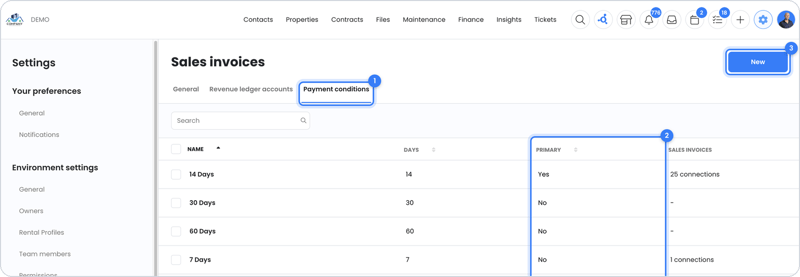
The Sales invoices column shows how many sales invoices use a payment condition.
Where do you use payment conditions?
| Where | How |
|---|---|
| Manual sales invoice | Choose the term under Payment condition. The due date follows from it. See How do I create a manual sales invoice? |
| Booking | On the booking, choose Expire per payment term (due date based on a payment condition) and select the payment condition, or enter your own date. See How do bookings work? |
The due date of automatic sales invoices for rental contracts follows from the invoicing settings. Read more in How does automatic invoicing work?
Frequently asked questions
What happens when a sales invoice passes its due date?
It then appears under Overdue and OWNER can send automatic reminders. See How do I turn automatic reminders on or off?
Can I change a payment condition that’s already in use?
If you change the number of days, check the due date of new sales invoices. If in doubt, it’s better to create a new payment condition.
Still need help?
Contact support:
- Chat: through the help center (chat button at the bottom right)
- Email: support@owner.app
- Call or WhatsApp: +31 591 799 602