
Your rental profile is your public ‘storefront’ on OWNER: one page with all your placements. With a website widget, you show those same placements on your own website.
In this article
What is a rental profile?
On the back end (my.owner.app), you manage your properties; on the front end (owner.app), you make properties public. Your rental profile is the public page where visitors see all your placements: long term or short term, available or not yet available.
- You choose your own subdomain: the address of your public page with your listings.
- Visitors can follow your profile and get notified about available properties. You can see the number of followers in the Followers column.
- You can also show properties that aren't available right now. That way you show your whole portfolio, and visitors can request a notification for when a property becomes available.
Setting up a rental profile
Step 1 – Open the rental profiles
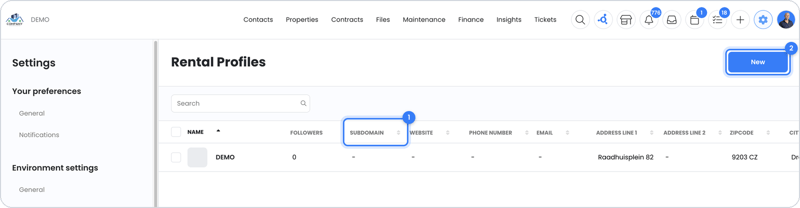
- Go to Settings > Environment settings > Rental Profiles.
- You'll see your profiles with the columns Name, Followers, Subdomain, Website, Phone number, Email and address.
Step 2 – Fill in your profile
- Open your profile or create a new one.
- Enter the name and choose your subdomain.
- Enter your website, phone number, email address and address, so visitors know who they're dealing with.
- Save the profile.
You manage the placements themselves via the house icon at the top of my.owner.app. See How do placements work?.
Placements on your own website
A website widget is a piece of code you paste on your website once. After that, your placements are always up to date there; new placements appear automatically.
Step 1 – Create a widget
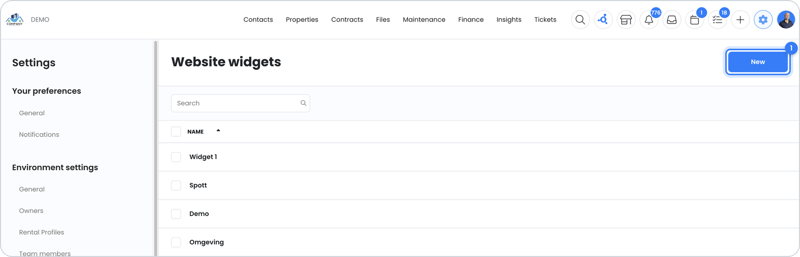
- Go to Settings > Environment settings > Website widgets.
- Click New in the top right.
- Give the widget a recognizable name and save it.
Step 2 – Place the code on your website
- Copy the widget's HTML embed code.
- Paste the code on the page of your website where you want it, or send it to your website builder.
Frequently asked questions
Do I need to update the widget when I add a new placement?
No. The widget automatically keeps your placements up to date.
Do visitors also see properties that are rented out?
Only if you place them. You can also place properties that aren't available; visitors can then request a notification for when the property becomes available.
Still need help?
Contact support:
- Chat: via the help center (chat button in the bottom right)
- Email: support@owner.app
- Call or WhatsApp: +31 591 799 602