
Here's how to list a unit publicly on OWNER in a few steps. The more complete your placement, the better searchers can find it.
In this article
How to create a placement
Step 1 – Open your placements
- At the top of my.owner.app, click the house icon.
- Click New. You can also open the unit and add a placement there.
Step 2 – Choose the unit and the kind
- Choose the Rental profile and the Unit you want to place.
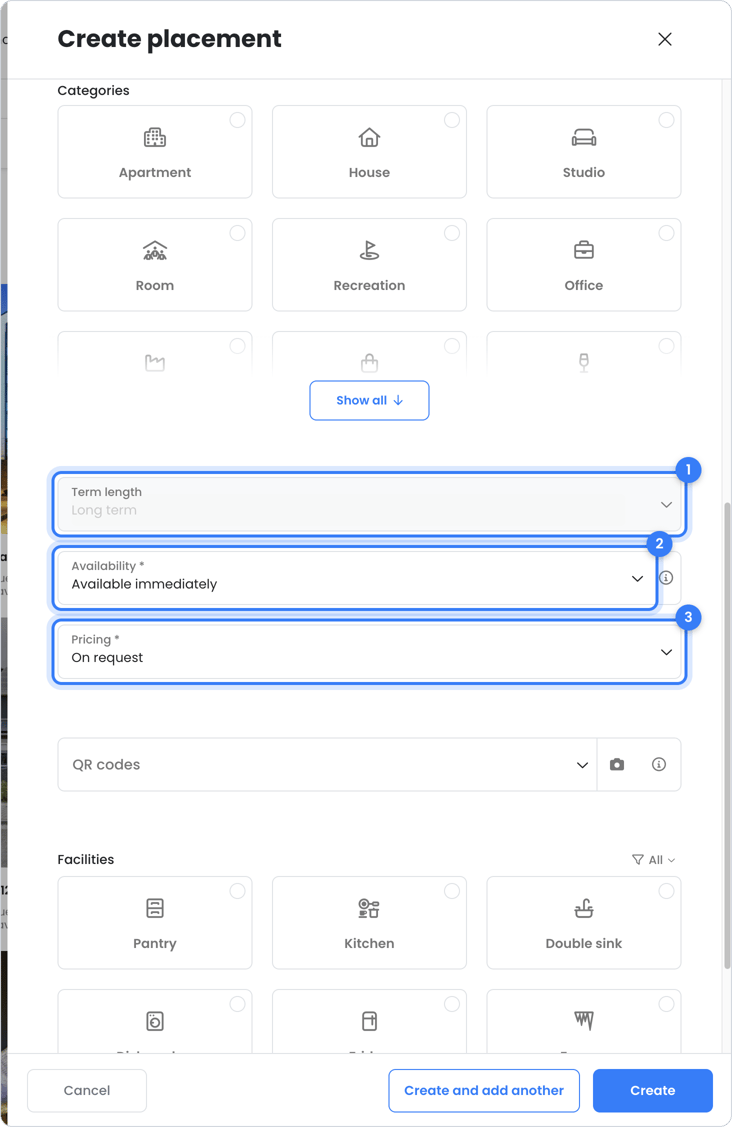
- Under Term length, choose Long term (rental) or Short term (bookings). Each unit can only have one placement at a time.
Step 3 – Write a title and description
- Choose a title that makes it immediately clear what you're offering.
- Briefly and concretely describe what makes the unit special: location, layout, outdoor space.
Step 4 – Add photos and media
- Use sharp photos with good lighting, from different angles.
Step 5 – Select the amenities
- Check as many amenities as possible. Searchers filter on them, so you'll appear in more search results.
Step 6 – Fill in price and availability
- Choose the Pricing, for example On request.
- Long term: under Availability, indicate from when the unit is available, for example Available immediately.
- Short term: the booking calendar automatically shows which periods are free.
Step 7 – Create the placement
- Click Create.
- Your placement is now on owner.app, on your rental profile and – if you use one – in your website widget.
After placing
- Responses to a long-term placement come in as a ticket. See What happens when someone responds to my placement?.
- You can find bookings under Contracts > Bookings. See Bookings.
- Want your placements on your own website too? Use a website widget.
Tip: also place units that are still rented. Visitors can then request a notification for as soon as the property becomes available. And don't forget the property itself: with a poster or sign with a QR code you'll stand out even more.
Still need help?
Contact support:
- Chat: via the help center (chat button at the bottom right)
- Email: support@owner.app
- Call or WhatsApp: +31 591 799 602