
You use roles to decide what a team member is allowed to do in OWNER. A role is a set of permissions; each team member gets one role.
How do roles work?
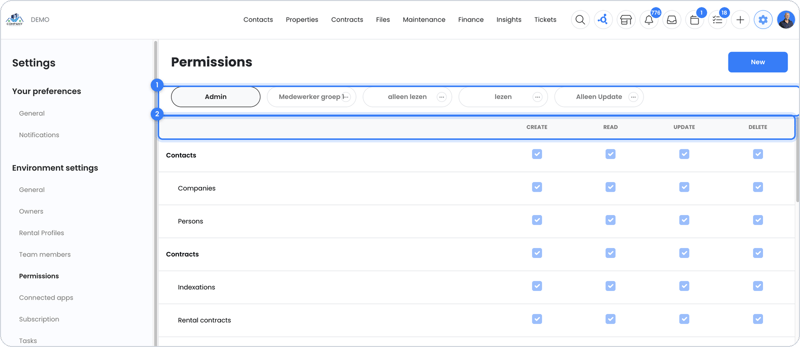
By default there is the Admin role, which has all permissions. You can add roles yourself, for example "Intern" or "Accounting". For each role, you decide per section of OWNER what is allowed:
| Permission | What does it mean? |
|---|---|
| Create | Add new data, such as a rental contract or sales invoice. |
| Read | View data. |
| Update (edit) | Change existing data. |
| Delete | Delete data. |
Creating and assigning a role
Step 1 – Create a role
- Go to Settings > Environment settings > Permissions.
- Click New at the top right and give the role a name.
- For each section, check whether the role can create, read, update and delete, and save.
Step 2 – Assign the role to a team member
- Go to Settings > Environment settings > Team members.
- Click the team member and choose the role.
The team member then automatically gets all permissions of that role. If you change a role later, the change applies to all team members with that role.
Inviting a new team member? Read How do I add a team member in OWNER?.
Still need help?
Contact support:
- Chat: through the help center (chat button at the bottom right)
- Email: support@owner.app
- Call or WhatsApp: +31 591 799 602